
 Restaurant Menus Restaurant Menus
 |
This section will allow restaurant owners to create an online menu for visitors to browse.
A few things to note...
- Your restaurant must be listed in the directory in order to use this option.
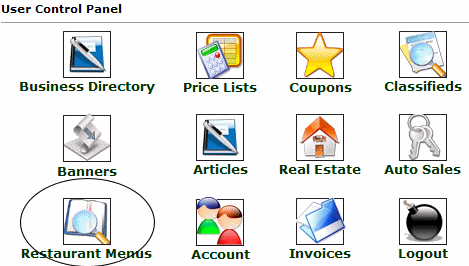
- You must check the "Include restaurant menu" option within your business listing details when listing your restaurant or you will not see the icon circled to the left in your User Control panel.
|
First, ensure your Restaurant is already registered in our Business Directory. If it is not, please refer to the Business Directory chapter of our Guide for details on listing your business. Once your business is successfully listed in our directory, click on the icon shown below in your User Control Panel.
|
Restaurant Menus
Upon clicking the icon, you will see a list of businesses you currently have listed in our directory (more than likely only one will be listed, but a few business owners may have more than one location, or other businesses they wish to list). |

Clicking the Edit link in the far right column will allow you to add and delete items from your menu list. All menus are already set up with 8 default headings. A heading is the category type the menu item will be listed under (Appetizers, Salads, Entrees, Specials, Side Dishes, Desserts, Drinks and Wines). See below for an example of what this area will look like prior to you adding your own items.
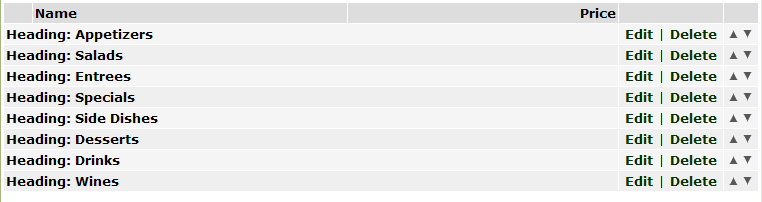
From in this area, you can add or delete (by clicking the appropriate text links) any headings you may need and also add new items for your menu. The up and down arrows in the far right column will move the order in which the items and their heading are displaying. It may be helpful for you to go ahead and delete any headings you wish to not use.
Adding a New Item to the Menu:
To add a new item, you will complete the short form above the heading and menu items list. In the below example we will be adding an appetizer item. NOTE: If the item you are adding is a menu item (and they are not configuring a new heading category, they will leave the Item Type set at Product. We will show you how to create a new Heading a bit later.

Click the Add Item button when finished. The new item will now display at the bottom of the list. You can click the up arrow (in the far right column) to move the item until it is correctly under the Appetizers heading as shown below.
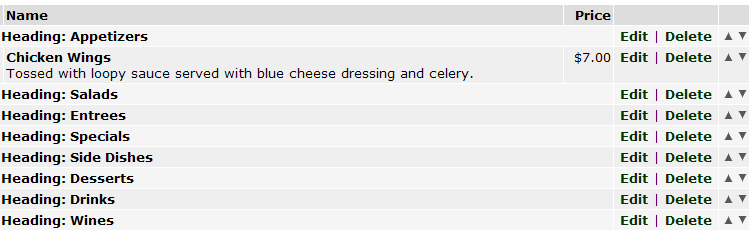
TIP: Clicking the up arrow one time, letting the page refresh and then clicking the Enter or Go button in your browsers address bar will expedite this process by repeating the last function until the item is where it is desired. In this example the browser is Internet Explorer.

Continue to add new items to the menu until it is complete.
Adding a New Menu Heading:
To add a new heading for a new category, use the Add a New Item form. Change the Item Type from Product to Heading. Complete the name field and click 'Add Item'. Leave the other fields blank.

Where is your menu seen?
When a menu has been added to a business listing, it will display in the listing details when a visitor navigates through the directory to the restaurants listing. It would display similar to the below example:

|

